Whether you are building a recruitment agency website, an in-house HR portal, or a staffing firm’s digital presence, one of the most common requirements is a live, searchable job board that reflects your current open roles. Squarespace is a popular choice for recruitment websites because of its polished templates, ease of use, and professional design output. However, it was not built with recruitment in mind, and adding a functional job board — one that pulls live data from your applicant tracking system (ATS), filters by location or job type, and routes candidates seamlessly into your hiring pipeline — requires a considered approach.
This article walks through every viable option for integrating a live job board into your Squarespace site and shows you how to do it as easily as possible — from Squarespace’s native page tools to ATS career portals, API-driven feeds, automation middleware, spreadsheet-based solutions, and third-party widgets. By the end, you will have a clear picture of which solution best fits your workflow, your ATS, and your technical comfort level, along with the practical steps to get your chosen job board live.
Squarespace’s Built-In Options: Custom Pages for Job Listings
Before reaching for external tools, it is worth understanding what Squarespace provides natively, because for smaller teams or agencies that manage a modest number of roles, its built-in content types can serve as a starting point.
Squarespace does not have a dedicated “Jobs” content type, but it does offer several page types that can be repurposed to display job listings:
Blog Pages are the most commonly used workaround. Each job listing becomes a blog post, with the post title as the job title and the body content containing the role description, requirements, and application details. Squarespace’s blog supports tags and categories, which means you can tag posts by location, department, or job type and allow visitors to filter by those tags. The Summary Block can then display these posts in a styled grid or list format on any page of your site.
Portfolio Pages offer a similar structure, with individual items that can each represent a role. These are well-suited to visually presenting positions, though the filtering capability is more limited than the blog approach.
Cover Pages and Blank Pages can be used to build simple static listings, though these require manual updates every time a role is added, edited, or removed and offer no filtering or search functionality.
The fundamental limitation of all native Squarespace options is that they are entirely manual. There is no connection to an external ATS, no automatic sync, and no two-way flow of candidate application data back into a recruitment pipeline. Every new job must be added by hand, every filled role must be removed by hand, and applications are captured through Squarespace’s own form system rather than being tracked inside your ATS. For a solo recruiter managing a handful of roles, this may be acceptable. For a busy agency handling dozens of live vacancies across multiple clients, it is impractical.
ATS Career Portals and Embed Options
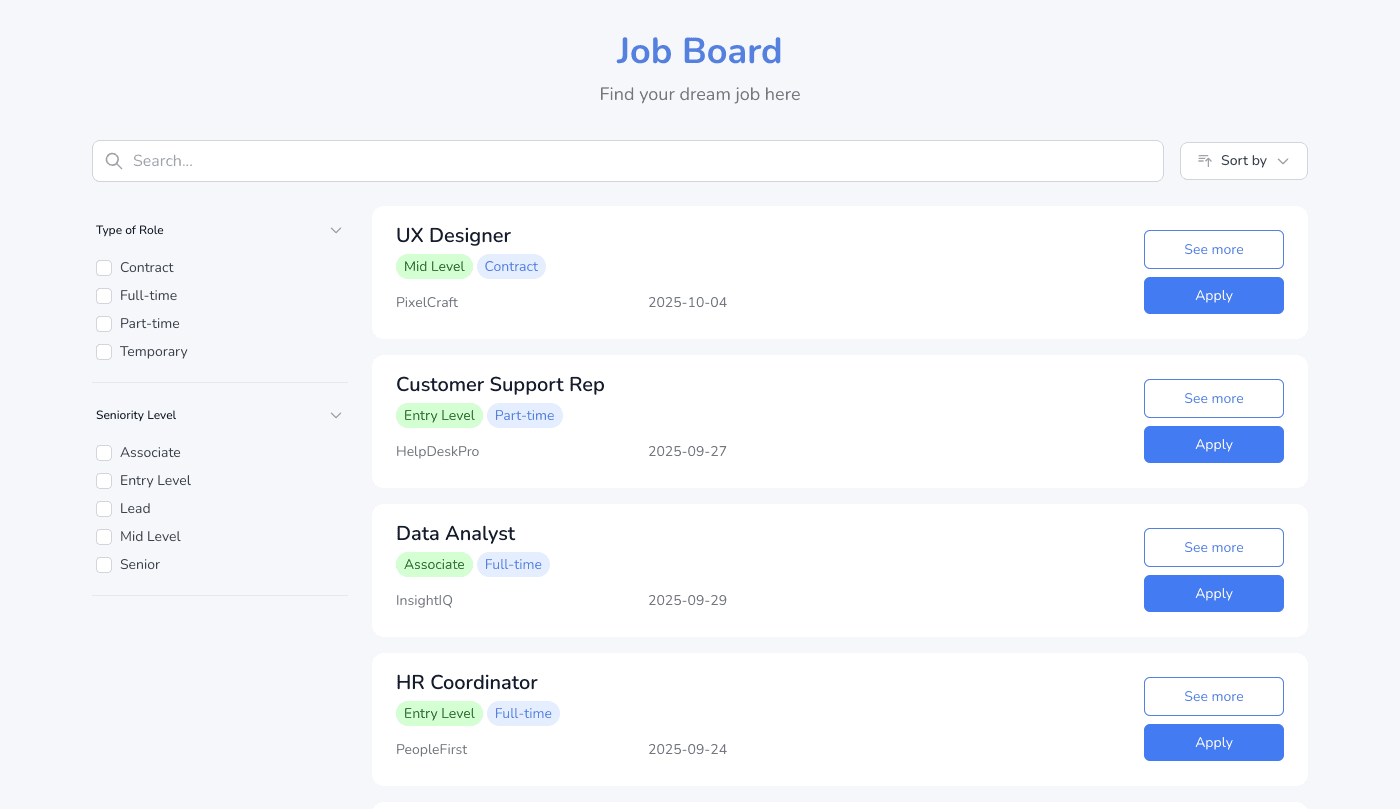
The most reliable and professionally robust way to display a live job board on a Squarespace site is to use the career portal or embed functionality built directly into your ATS. Because the data lives in the ATS and the embed simply renders it on your site, there is no manual update process, no data duplication, and no disconnect between what candidates see and what your recruiters are managing.
Greenhouse
Greenhouse is one of the most embed-friendly ATS platforms available. It offers five distinct integration options of increasing complexity. The simplest is an iFrame embed: a few short lines of code that load your Greenhouse-hosted job board directly inside an iFrame on your Squarespace careers page. Candidates browse and apply without leaving your site, and all applications flow directly into your Greenhouse pipeline.
Beyond the iFrame, Greenhouse also provides a JavaScript snippet that loads jobs dynamically and inherits your site’s CSS styling for a more seamless visual integration. For teams with developer access, Greenhouse exposes a fully public JSON API that allows a developer to pull job listings, filter by department or office, and render them as native HTML elements styled entirely to match the site. Greenhouse explicitly names Squarespace as a supported website builder in its integration documentation. More Info
Workable
Workable provides an embeddable job widget — a few lines of code you copy from Settings > Integrations > Company website and paste into a Squarespace Code Block. The widget automatically displays your published positions and inherits your site’s styling, so it reads as a native part of your careers page rather than an external tool. Workable also exposes an API for teams that want to build a fully custom careers page, and the widget can be refined further with additional CSS and JavaScript. Note that embedding individual job or application pages inside an iFrame requires a custom domain on your Workable account. More Info
Lever
Lever takes a similar approach. It provides an embed code generator that produces a small JavaScript snippet, which you paste into the <head> section of your site’s HTML via Squarespace’s Code Injection tool. This generates a dynamic, automatically updating list of published job postings. Because the widget inherits your site’s CSS, it can be made to look like a native part of your site rather than an embedded external tool. Lever also exposes a public Postings API that returns job data as JSON, making it suitable for more customised rendering. Lever additionally offers a paid Career Site Builder for teams that want a fully branded, hosted career portal connected to their Lever instance. More Info
Loxo
Loxo lets you embed your live job listings directly via an iFrame. From your Loxo Careers Page customisation screen (More > Careers Page > Customize), select “Copy Embed Code” to copy a ready-made iFrame snippet, then paste it into a Squarespace Code Block or Embed Block. Your open roles appear automatically and stay in sync with your Loxo account. For a more deeply blended look, Loxo also exposes an Open API that a developer can use to render listings as native, fully styled HTML — though, as covered later, that route relies on authenticated API calls that Squarespace cannot secure on its own. More Info
RecruitCRM
RecruitCRM generates a unique public career page URL for each agency account. This URL can be referenced in an iFrame tag embedded on your Squarespace page, displaying your live job listings automatically. RecruitCRM also offers Recruit Craft, its own no-code website builder, which syncs directly with your RecruitCRM account as a standalone hosted career site. More Info
Crelate
Crelate has published Squarespace-specific documentation for embedding its candidate portal via iFrame. The process is straightforward: obtain the iFrame URL from Crelate’s settings, paste it into a Squarespace Embed or Code Block, and your live job listings appear on the page. More Info
Bullhorn
Bullhorn’s career portal offering is more technically involved than the others. Rather than a simple copy-paste iFrame, Bullhorn provides an open-source Career Portal — a self-hosted Angular application that pulls jobs live from your Bullhorn ATS instance. It includes a simple application form, an XML sitemap for SEO, and social sharing support, but it requires Node.js and Angular CLI to build and deploy. It is not a no-code solution.
Bullhorn does have a WordPress plugin (Matador Jobs) that integrates natively and deeply with the CMS — but no equivalent exists for Squarespace.
JobAdder
JobAdder does not offer a native iFrame or JavaScript embed for career pages. The most practical path for JobAdder users who want their jobs displayed on a Squarespace site involves either a third-party middleware layer (such as Refari, which syncs JobAdder jobs to a website without brittle iFrames) or the API-driven and spreadsheet-based approaches described in the sections below.
Recruiterflow
Recruiterflow includes a native iFrame embed that lists all open jobs and supports built-in filtering by department and location. This can be pasted directly into a Squarespace Code Block on a Core plan or above, making it one of the simpler no-code options for Recruiterflow users. More Info
Did you know
Squarespace Compatibility Note
All iFrame and JavaScript embeds from these ATS platforms are compatible with Squarespace on the Core plan and above. Squarespace supports iFrame and JavaScript code in Code Blocks and via Code Injection (Settings > Advanced > Code Injection) on these plans. The Basic plan does not support JavaScript or iFrame embeds in Code Blocks.
Limitations for Certain ATS Platforms: The Server-Side API Problem
Not all ATS platforms expose public, unauthenticated job listing endpoints. Some — including Bullhorn, Loxo, and JobAdder — require authenticated API calls using private bearer tokens or OAuth credentials. This creates a meaningful technical barrier when working within Squarespace’s constraints.
Squarespace does not support server-side code. There is no PHP, no Node.js runtime, no backend, and no way to store private API credentials securely on the server. If you were to write JavaScript in a Squarespace Code Block that called an authenticated ATS API directly, the bearer token would be visible in the browser’s developer tools to anyone who inspected the page source. This is a genuine security risk and not an acceptable approach for production use.
The platforms most affected by this limitation include:
Loxo — Loxo has a well-documented Open API with endpoints for listing jobs, retrieving job details, and even accepting candidate applications, all using bearer token authentication. The API is capable and flexible, but the bearer token cannot be safely embedded in client-side JavaScript on a Squarespace page.
Bullhorn — Bullhorn’s full REST API also requires authentication. While Bullhorn’s open-source Career Portal can be self-hosted and uses the API securely on the server side, there is no simple embed option that achieves the same result on Squarespace.
JobAdder — JobAdder uses OAuth 2.0 for its API, which requires a backend server to handle the token exchange securely.
For teams using these platforms who want to display job listings on a Squarespace site without full custom development, there are two practical paths: the Make.com proxy approach, or the spreadsheet-based solution — both of which are covered in the sections that follow.
The Make.com Proxy: A Makeshift But Effective Middleware Solution
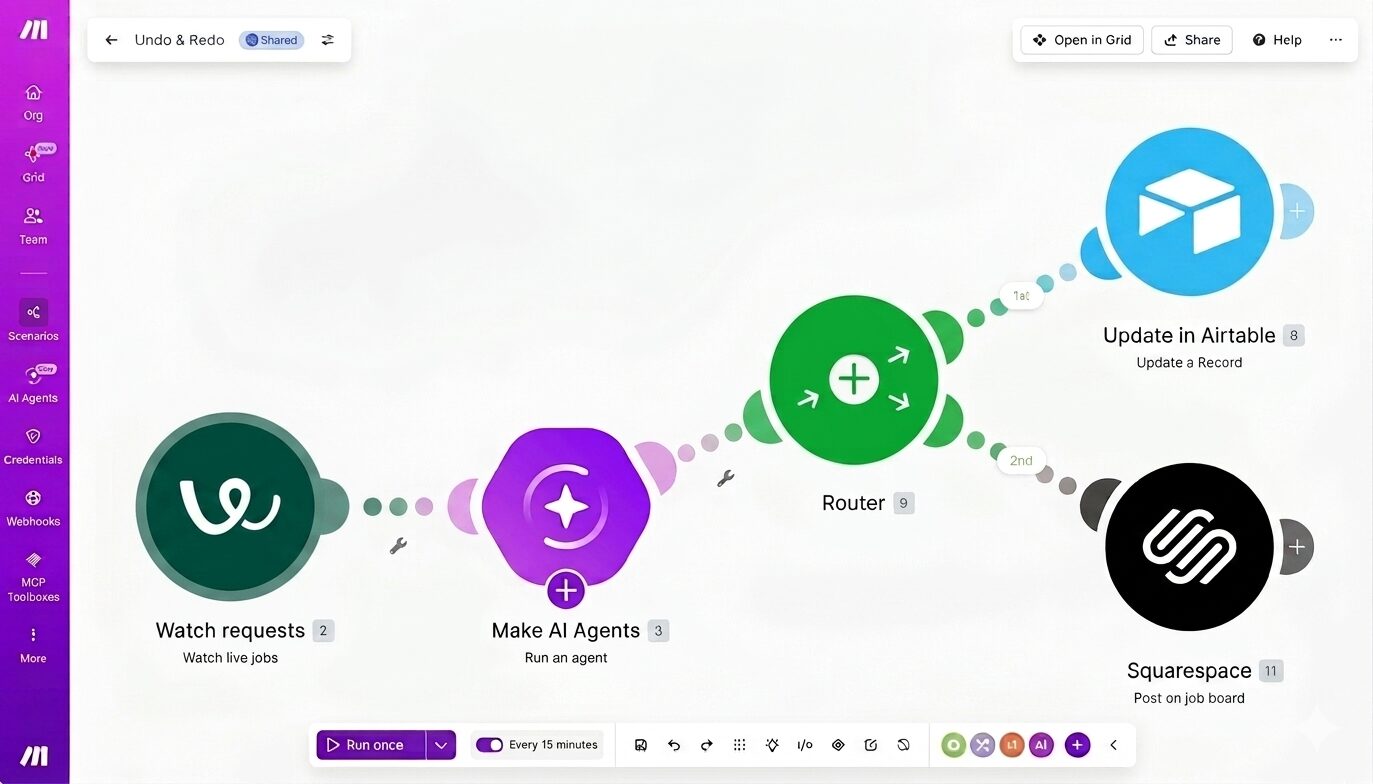
Make.com (formerly Integromat) is a no-code/low-code automation platform that can bridge the gap between an authenticated ATS API and a Squarespace website. While it is not a purpose-built solution, it is a genuinely viable one for technically comfortable non-developers who are willing to configure a few moving parts.
The concept works as follows. Make.com can receive an incoming HTTP request (via its Custom Webhook trigger), make an outbound authenticated API call to your ATS using credentials stored securely inside Make, and then return the job data as a JSON response to whoever called the webhook. Your Squarespace page uses a small JavaScript snippet to call the Make webhook URL, receives the job data back as JSON, and renders it as a styled list of jobs on the page.
In practice, the Make scenario consists of three modules:
Step 1 — Custom Webhook Trigger. Make generates a unique public HTTPS URL. This URL accepts GET requests from your Squarespace JavaScript. It is public but obscure — the URL itself carries no credentials and exposes no sensitive data.
Step 2 — HTTP Module. Make calls your ATS’s API (for example, Loxo’s /jobs endpoint) using the bearer token stored securely inside Make’s configuration. The ATS returns the full list of active job postings as JSON. The API key never touches the browser at any point.
Step 3 — Webhook Response Module. Make returns the job data as a JSON response to the original Squarespace request, with the Access-Control-Allow-Origin: * header set to allow cross-origin requests from the browser.
Your Squarespace Code Block then contains something along these lines:
fetch('https://hook.eu1.make.com/your-webhook-id')
  .then(res => res.json())  .then(jobs => {    // Render jobs as HTML with filters  });
Make also supports caching: using its Data Store module, the job data can be stored and refreshed only every 15–30 minutes, reducing the number of calls made to your ATS API and improving page load speed.
Limitations of the Make.com Approach
This approach is effective, but it comes with several honest caveats that teams should understand before committing to it.
Response latency. Each time a visitor loads the careers page, Make must process the request, call the ATS API, and respond. Without caching, this typically adds one to three seconds to the page load. With caching, the first response after a cache refresh incurs this delay; subsequent responses are faster.
Make plan required. The Webhook Response module and HTTP module are available on Make’s paid plans, starting at around $9 per month. The free plan is insufficient for this use case.
CORS header configuration. The Webhook Response module must be configured to return the Access-Control-Allow-Origin: * header. If this is omitted, browsers will block the response due to cross-origin security policies, and the jobs will not load on the page.
Jobs rendered by JavaScript, not server-side HTML. Because the jobs are rendered dynamically by JavaScript after the page loads, they do not appear in the initial page HTML. Search engines, including Google, do generally crawl JavaScript-rendered content, but it is not as reliably indexed as server-rendered HTML. For teams that place high importance on SEO for their job listings, this is worth noting.
Someone needs to maintain it. Make scenarios can break if the ATS API changes its endpoint structure or authentication method. Someone on the team needs to know where the scenario lives and be able to troubleshoot it if it stops working.
The Google Sheets + Shareables Solution
For recruiters who already use Google Sheets as part of their day-to-day workflow, the combination of a Google Sheet and Shareables.ai offers one of the most straightforward, no-code ways to display a live, styled job board on a Squarespace site.
What Is Shareables.ai?
Shareables.ai is a no-code widget platform that connects directly to your Google Sheets or Airtable data and renders it as a beautifully designed, embeddable widget — including job boards, team directories, event listings, product catalogs, and more. It requires no coding, no CSV exports, and no manual republishing. Once connected, any update made to the spreadsheet is automatically reflected in the widget on your website.
Widgets are fully customisable through a visual editor, where you can control layout, colours, fonts, filterable fields, and which columns from your spreadsheet are displayed. Shareables.ai connects to Google Sheets via OAuth — you authorise access once and the connection remains persistent, with no API key management required. Embedding is done via a single line of HTML that works on any website builder, including Squarespace.
How to Use Google Sheets with Shareables.ai on Squarespace
The workflow is deliberately simple and can be completed in under 30 minutes:
Step 1 — Set up your Google Sheet. Create a Google Sheet with one row per job listing and column headers that correspond to the information you want to display — for example: Job Title, Location, Department, Employment Type, Salary, Description, and Application URL. Each row represents one open role. To remove a filled role, simply delete or hide that row.
Step 2 — Connect Google Sheets to Shareables.ai. Sign up at Shareables.ai and create a new widget. Select the Job Board template. Click “Connect Google Sheets,” complete the one-time OAuth authorisation, and select the spreadsheet and sheet tab containing your job data. Shareables will automatically detect your column headers.
Step 3 — Map your fields and customise the widget. Use the visual editor to map your spreadsheet columns to the appropriate widget fields. Customise the layout, colour scheme, and typography to match your Squarespace site’s branding. Enable search and filter options for whichever fields are most relevant to your candidates — typically location, department, and employment type.
Step 4 — Copy and embed the code. Once the widget is configured, click “Embed on Website” and copy the generated embed code. In Squarespace, navigate to the page where you want the job board to appear, add a Code Block, paste the embed code, and save. The job board is immediately live.
Step 5 — Maintain jobs by updating the spreadsheet. From this point forward, adding a new role is as simple as adding a new row to the Google Sheet. Removing a filled role means deleting or archiving that row. Shareables reflects the change on your website automatically — there is nothing to republish, no dashboard to log back into, and no embed code to update.
Why This Works Well for Recruiters
Many recruiters, particularly those at smaller agencies or who work independently, already track open roles in Google Sheets — whether as a client-facing tracker, an internal pipeline overview, or a simple vacancy list. For these users, the spreadsheet is not an additional layer of complexity; it is already where their data lives. Shareables turns that same spreadsheet into a professional, public-facing job board without introducing new systems or requiring any technical knowledge.
Using Shareables with Airtable
For teams that use Airtable rather than Google Sheets, Shareables offers an equally seamless integration. Airtable’s richer data model — with linked fields, dropdown selects, and multiple view types — maps naturally to job board displays. Shareables connects to Airtable via OAuth in the same way as Google Sheets. Teams that already use Airtable as a lightweight internal ATS or client management system will find this combination particularly effective, as filtered Airtable views can be used to control precisely which roles appear publicly on the website.
Third-Party Job Board Widgets: Elfsight, MembershipWorks, and Similar Tools
A range of third-party widget services — including Elfsight, MembershipWorks, Common Ninja, and Webynize — offer embeddable job board widgets for Squarespace that require no technical knowledge to set up. These are widely marketed and easy to deploy, but they come with a fundamental architectural limitation that makes them unsuitable for most professional recruiters and recruitment agencies.
How They Work
These tools provide a self-contained job board that lives entirely within the third-party platform. You log into the widget provider’s dashboard, manually enter job listings by filling in a form, and the widget displays those listings on your website via an embed snippet. The entire job database is owned and stored by the widget provider, not by your ATS.
The Fundamental Drawback
The critical problem is that there is no connection to any ATS. These widgets do not pull data from Greenhouse, Lever, Bullhorn, Loxo, or any other recruitment platform. Every job must be added, edited, and removed manually — duplicating work that is already being done inside the ATS. For a busy recruitment agency managing dozens of active roles across multiple clients, this creates a parallel data entry burden that negates much of the efficiency that an ATS is designed to provide.
There is also no application pipeline integration. When a candidate applies through one of these widgets, their data goes into the widget provider’s system, not into the recruiter’s ATS. The recruiter must then manually transfer application information across, or set up a separate automation workflow to do so — which adds yet more complexity to a solution that was supposed to be simple.
Who These Tools Are and Are Not For
Elfsight, MembershipWorks, and similar widgets are genuinely well-suited to a specific narrow use case: a small business or organisation that does not use a dedicated ATS, has a handful of roles to advertise at any given time, and wants a visually presentable job listing on their website with minimal setup.
They are not appropriate for:
- Recruitment agencies managing live roles across multiple clients
- In-house HR teams using a dedicated ATS as their system of record
- Any recruiter who needs applications to flow directly into a pipeline
- Businesses that post, close, or update roles frequently
- Organisations that require candidate data to be held within a specific, compliant platform
For seasoned, professional recruiters, the manual overhead and the disconnection from the ATS are not minor inconveniences — they are structural problems that undermine the entire value of a live job board.
Conclusion
Every solution discussed in this article operates within the constraints of Squarespace’s architecture, and those constraints are real. Squarespace does not support server-side code, which means that regardless of whether you use a native ATS embed, a Make.com proxy, a Google Sheets widget, or a third-party tool, you are always working within a client-side-only environment. That environment introduces trade-offs around security, SEO, and real-time data access that a server-rendered platform simply does not face — and for certain ATS platforms, those trade-offs require workarounds that add complexity, cost, or ongoing maintenance overhead.
If your requirements go beyond what these solutions can reliably deliver — if you need a purpose-built ATS integration, server-side job rendering for better SEO, advanced search and filtering, or a career site that behaves as a true extension of your recruitment platform rather than a workaround within a website builder — then a custom-built solution on a more capable platform is the right answer.
For a customised recruitment website — whether built on WordPress with deep ATS integration or a bespoke solution tailored to your specific ATS and workflow — reach out to Codekyt for a build that fits your business.